Load both documents.
Choose the original and the revised DOCX file from your computer.
 Open DiffFind
DIFFFIND FEATURES
Load two versions of a Word document and see exactly what changed. DiffFind shows both DOCX files as formatted text side by side and highlights every added, removed, and changed passage right in the document, so you can review a revised contract, policy, or proposal without reading it twice.
Choose the original and the revised DOCX file from your computer.
DiffFind compares the text of both documents, including paragraphs, lists, and tables.
See changes marked in the Before and After views, and click any change to jump to it in both documents.
Screenshot of the feature in the DiffFind app.
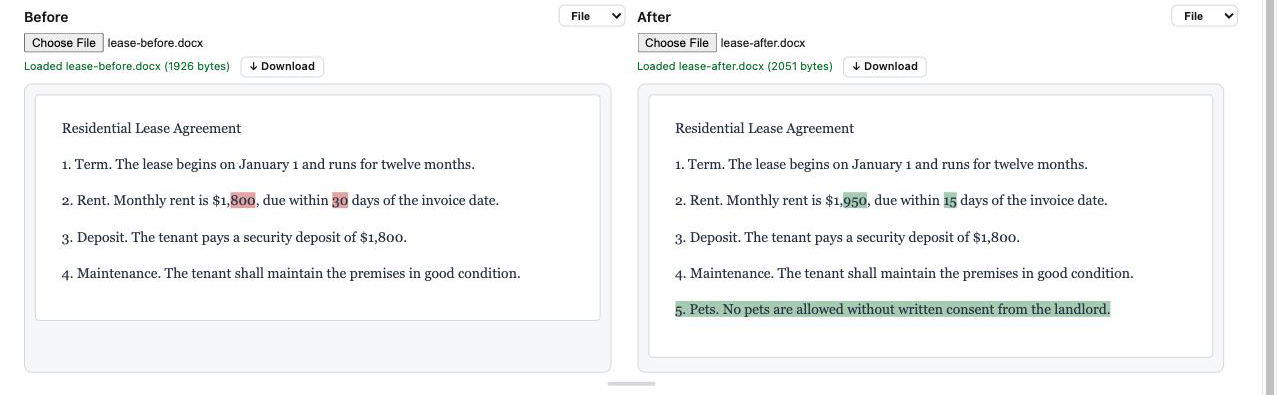
Use it to review contracts, leases, policies, proposals, and reports that get revised and passed around. Instead of rereading both versions, start from a highlighted view of what changed.
Repeated wording is handled correctly: when the same phrase appears several times, DiffFind highlights the exact occurrence that changed, not the first match.
Good to know: DiffFind compares the document text. Images, headers, footers, footnotes, and text boxes are not compared, tracked changes are compared as accepted, and older .doc files need to be saved as .docx first.
Need a different format? Try PDF Comparison, Excel ComparisonWord Comparison, or Text Compare. To understand what a change means, see Semantic Diff or Semantic Search.
TRY IT WITH YOUR OWN DOCUMENTS