Load both versions.
Choose the original and the revised document, or paste the text of each.
 Open DiffFind
DIFFFIND FEATURES
Load the original and the revised version of a document and see exactly what changed. DiffFind highlights additions, removals, and edits, so you can review a revision without reading both copies side by side.
Choose the original and the revised document, or paste the text of each.
DiffFind finds every difference between the two versions.
See changed, added, and removed content highlighted, then check each one against the source.
Screenshot of the feature in the DiffFind app.
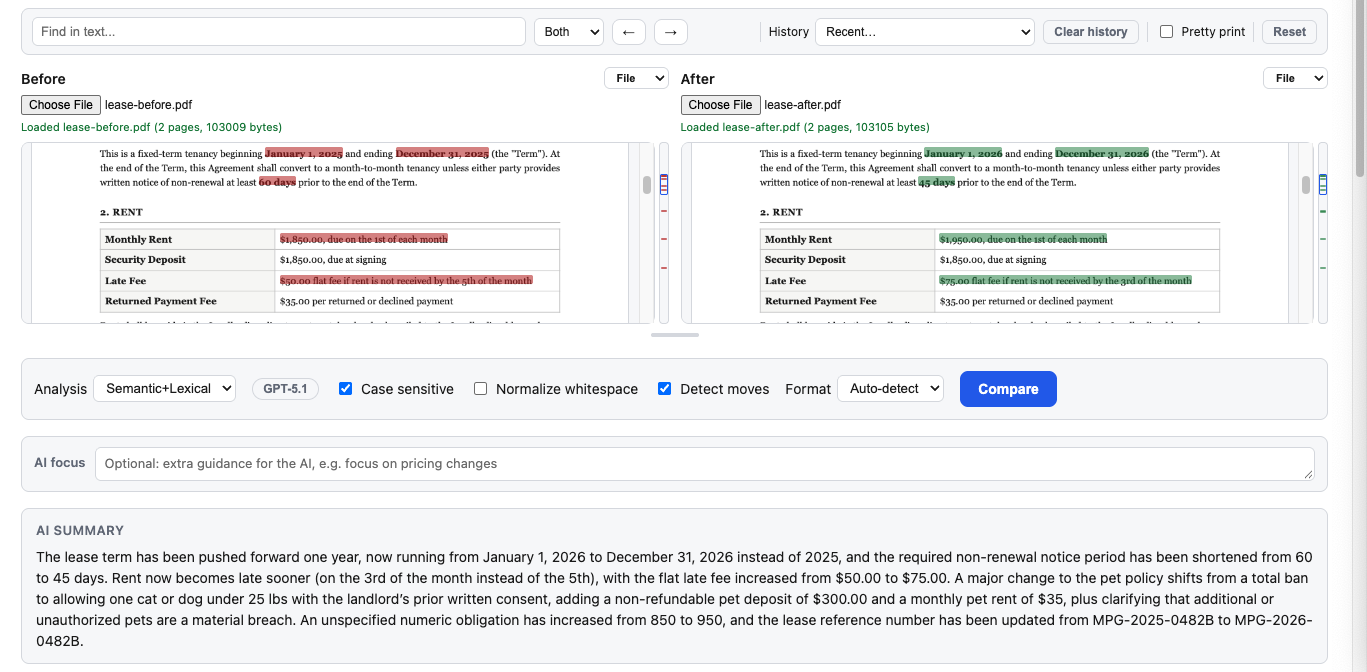
Load two local PDFs and see changes highlighted on the page. See PDF Comparison.
Compare Excel workbooks (XLS and XLSX), every sheet at once. See Excel Comparison.
Paste two versions and compare by character, word, sentence, line, or paragraph. See Text Compare.
Compare the structure of JSON, YAML, XML, and CSV files instead of raw lines.
Have a document in another format? Copy its text and paste it into the text comparison.
A comparison shows what changed. To understand whether a wording change affects meaning, add optional analysis with Semantic Diff, or locate a clause by idea with Semantic Document Search.
TRY IT WITH YOUR OWN DOCUMENTS